Back-to-school displays do not need to be complicated. A small set of coordinated astronaut, rocket, and planet graphics can become labels, learning prompts, reward cards, and bulletin-board accents when you plan the sizes before printing. This guide shows a practical way to turn space classroom printables into useful classroom tools.
15 space classroom printable ideas
Use a consistent color palette and repeat two or three motifs across the room. That creates a theme without making every surface visually busy.
- 1. Student name labels: Put one planet or rocket beside each name for cubbies, folders, or supply bins.
- 2. Desk or table-group signs: Assign groups names such as Moon, Mars, Orbit, and Comet.
- 3. Door welcome sign: Combine a short welcome message with one large astronaut or rocket accent.
- 4. Bulletin-board border: Print small planets in a repeating strip and leave the center open for student work.
- 5. “Blast off” goal chart: Add a rocket to each milestone row and move a class marker as goals are met.
- 6. Reading-log badges: Use a planet or star as a small badge students can color or check off.
- 7. Schedule cards: Place one themed icon on each card so learners can scan the day quickly.
- 8. Job chart: Give classroom jobs their own planet card, with a blank line for the student’s name.
- 9. Subject labels: Pair a graphic with labels such as Reading, Math, Science, and Art.
- 10. Science vocabulary cards: Add a space image to terms such as orbit, gravity, moon, and planet.
- 11. Question-of-the-day cards: Use a large graphic as a visual cue for a daily science prompt.
- 12. Hallway display tags: Mount student projects with small name cards and a matching space accent.
- 13. Reward tickets: Print compact tickets with a rocket, star, or astronaut and a blank reward line.
- 14. Library-bin markers: Mark fiction, nonfiction, space books, or independent reading baskets.
- 15. Learning-station signs: Make clear “Launch,” “Explore,” and “Return” signs for rotating activities.
Choose the workflow before you design
| Project | Recommended workflow | PNG setup | Verify before making the full set |
|---|---|---|---|
| Name or cubby labels | Design, print, trim, laminate | Transparent PNG on a high-contrast background | Names are legible at final size |
| Bulletin-board accents | Design, print, cut or mount | Large image with breathing room | The image reads across the room |
| Reward chart | Design, print, laminate | Reserve blank space for names or marks | The chart has room for repeated updates |
| Stickers or small badges | Print, then cut | Keep outlines and text away from trim edge | A test cut preserves important details |
| Vocabulary cards | Design, print, trim, laminate | Pair one image with one short term | Text is readable at arm’s length |
| Sublimation or shirt graphic | Check blank and mirror setting | Use PNG at the blank’s print area | Test print size and color on the material |
For a basic setup, create a document at the finished paper size, upload the PNG, remove any unused background shape, and resize the artwork by its intended physical dimensions. A transparent PNG lets you change the background color without a rectangular image box. For cut projects, use your machine’s print-then-cut calibration and material guidance; a PNG is not automatically an SVG or editable cut path.
A simple classroom workflow
1. List the classroom jobs first
Choose items that will genuinely be used: labels, schedule cards, or a goal chart. This prevents a decorative set from becoming unused prints.
2. Build one reusable template
Make one label or card with a fixed image area, text area, and margin. Duplicate it for names or terms, keeping the original template for replacements.
3. Test scale and contrast
Print one page on ordinary paper. Check that the smallest text is readable, the artwork is not cropped, and the background gives enough contrast before using cardstock or sticker paper.
4. Finish for the classroom
Trim with a paper trimmer, round corners if children will handle the cards, and laminate pieces that will be erased or moved repeatedly. Store spares in a marked envelope.
5. Make accessibility checks
Use text as well as color or imagery to identify a subject or station. Avoid relying on color alone, and leave enough blank space for visual clarity.
Product example: Space Explorer Science Club PNG Bundle
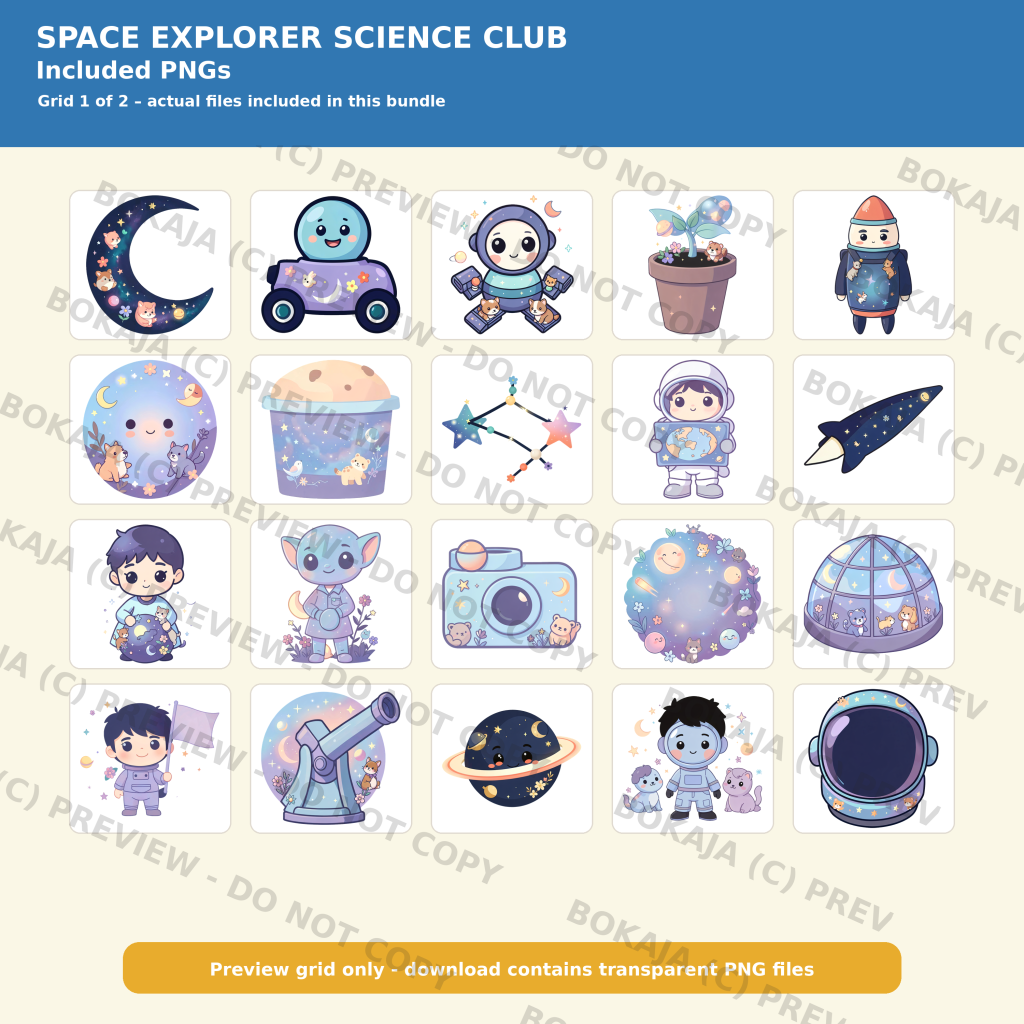
The Space Explorer Science Club PNG Bundle – 120 Images is a relevant starting set. The live listing states that it includes 120 transparent PNG images at 3072 × 3072 pixels with 300 DPI metadata, priced at €3.99. It is a digital product, not a physical classroom kit.
After checkout, access the attached Bokaja download PDF from the order downloads; the PDF contains links to three verified ZIP parts. This is manual download access, so do not plan around automatic or instant delivery. Review the commercial-use clipart guide and Bokaja digital product license. Original PNG or ZIP files may not be resold or shared as standalone digital assets.
Back-to-school checklist
- ☐ Choose the classroom tasks the graphics will support.
- ☐ Confirm the product contains transparent PNG files, not editable SVG cut paths.
- ☐ Create one template with fixed image and text areas.
- ☐ Print one test page and check scale, contrast, and cropping.
- ☐ Use cardstock, sticker paper, or laminate only after the test passes.
- ☐ Use words as well as colors or pictures for identification.
- ☐ Save a blank template for replacements.
- ☐ Read the best classroom clipart PNG bundle guide.
- ☐ Check PNG size and DPI tips before a large print run.
For related workflows, see How to Make Classroom Labels and Teacher Stickers With PNG Clipart and Classroom Clipart Ideas for Teachers.
FAQ: Frequently Asked Questions
Are transparent PNGs suitable for classroom labels?
Yes. Transparency lets artwork sit on a colored or white label background without a rectangular box. Add the name in your design tool.
What size are the Space Explorer files?
The listing identifies them as 3072 × 3072 pixels with 300 DPI metadata. Final printed size depends on your document, printer, and material.
How are the files delivered?
No instant-delivery claim should be made. The order download includes a PDF with ZIP access links; allow time to open it and retrieve the files.
Can I sell classroom products made with the PNGs?
The listing allows personal and small-business commercial use for finished physical products, subject to the license. Do not redistribute the original assets. Read the digital downloads and refunds policy.
Can I edit the PNG into an SVG?
This is a PNG bundle, not an editable SVG bundle. If you need a cut path, use appropriate software and test it on the chosen material.