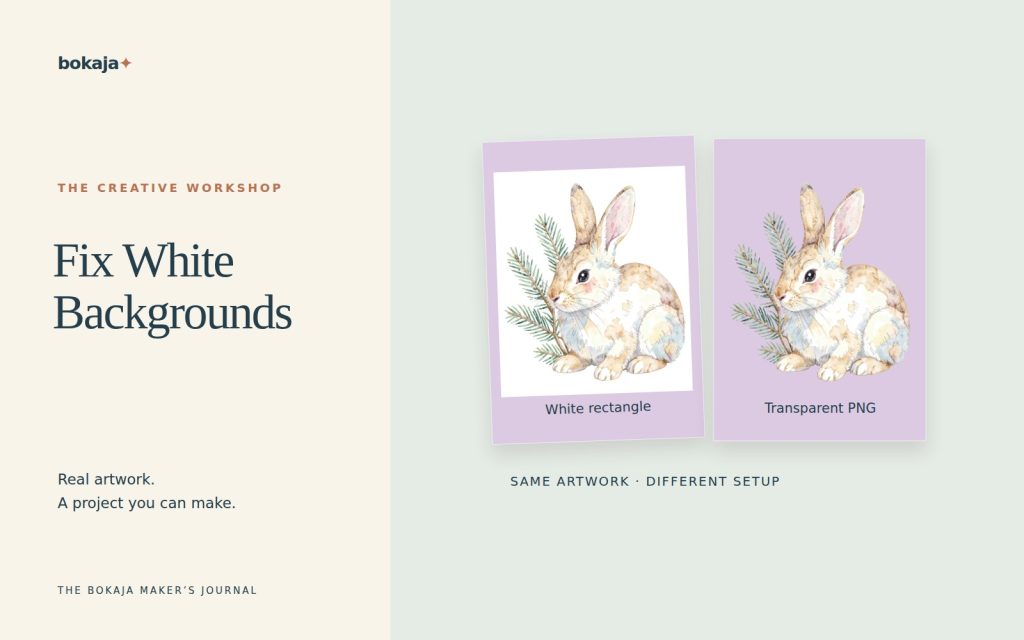
A PNG can appear to have a white background for three different reasons: the image viewer displays transparency as white, white pixels are genuinely part of the file, or an export added a background. Test which problem you have before using a background-removal tool.
Choose Watercolor Winter Hare Evergreen Postcard Studio for winter stationery artwork to inspect on dark backgrounds, or Autumn Animal Leaf Pressing Club for nature artwork to inspect against warm paper colors. Both are paid PNG artwork collections for layouts you design yourself; add your own text, shapes and measurements.
Make it with these Bokaja sets
Choose the style that fits your project. These are digital PNG artwork collections: add your own text and build the layout shown in this guide.

Watercolor Winter Hare Evergreen Postcard Studio
Winter stationery artwork to inspect on dark backgrounds.

Autumn Animal Leaf Pressing Club
Nature artwork to inspect against warm paper colors.
Worked example: find the stage that added white
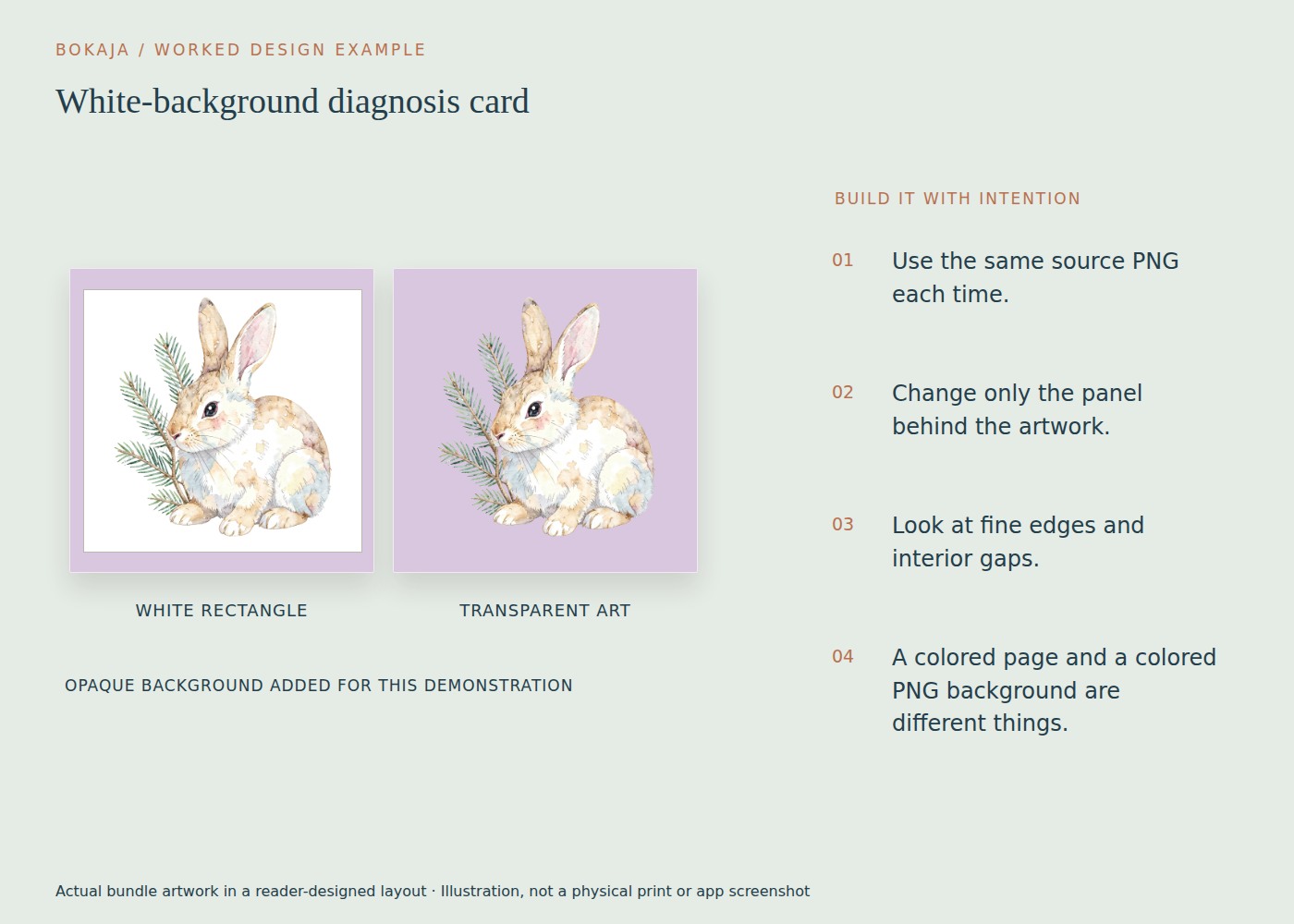
Use a 6 × 4-inch test page and one downloaded winter-stationery PNG. Draw a dark rectangle on the left and a warm-colored rectangle on the right. Place the image across each at 2 inches wide. Keep a copy of the untouched source outside the design document.
Now compare three files: the source PNG, the page export and an export intended to contain only the illustration.
| What you see | Most useful next check |
|---|---|
| Source blends into both rectangles | Source transparency is working in that application |
| Source shows a white box on both | Check whether you downloaded a preview or genuinely opaque file |
| Source blends, isolated export shows a box | Check export background and format settings |
| The whole page is white around the design | Decide whether the page itself was meant to be transparent |
A printable card normally has a page background. It is not defective simply because the finished PDF or page PNG contains white outside the illustration. The issue is an unwanted rectangle inside your colored design, or an isolated asset that should have retained transparency.
If white is baked into the actual source, duplicate it before editing. Select a small background area and inspect the selection around pale details before applying deletion. A global “remove all white” action can remove highlights and interior details that belong to the art. Undo immediately if those details disappear.
After repair, place the new file on both test colors at its final size. Check that you solved the original rectangle without creating ragged edges or transparent holes. If the download is a protected listing preview rather than the purchased source, stop editing that preview and obtain the actual download instead.
Confirm that you downloaded the source
Listing previews and search-result images are often flattened for display. A screenshot captures whatever background was visible at the time. Renaming one of those images with a .png extension does not remove that background.
Return to the download provided with your purchase or sample. If several files exist, distinguish the artwork from preview sheets and mockups. Keep the original filename until you have identified the right asset.
If the source is fine but the export is white
Reopen the design document and inspect the page background and any full-page shapes. A white rectangle behind the artwork will be included in an ordinary export even if the original PNG is transparent.
Choose an export format that supports transparency and, where available in your application and plan, enable the transparent-background option. Feature availability can differ between accounts. If the required option is unavailable, use a suitable image editor or keep the original PNG as a separate element rather than promising a transparent export from every account.
JPEG is not the right intermediate format when you need an alpha channel. Exporting a JPEG and later saving it as PNG preserves the white pixels; it does not restore the lost transparency.
After export, import the new file into a fresh colored document. This checks the delivered file instead of assuming that the working canvas and exported result match.
If white pixels are genuinely baked in
Use a background-selection or removal tool on a copy. Begin conservatively. Increase tolerance only when needed, and inspect pale interior details after each change.
A simple white background around a dark, solid object is easier to separate than a white background touching white fur, translucent wings or a soft shadow. Where the colors blend, the tool has to guess. Manual masking or a better source file may give a cleaner result than repeated automatic removal.
Compare the repaired image against the original. Look for missing highlights, rough edges, leftover specks and a pale halo. Inspect it on white, dark gray and a saturated color, then at its intended print size. Extreme zoom is useful for diagnosis, but the finished size determines whether the repair is acceptable.
What to check in Cricut Design Space
If a white rectangle appears in a PNG intended for Print Then Cut, verify the source transparency before changing cut operations. A flattened white page may create a rectangular boundary around the entire composition.
If you intentionally want a white sticker border, keep that border as a designed shape. It is different from an accidental full-canvas background. Inspect the preview to confirm whether the machine will cut the intended outer contour, separate internal areas or one large rectangle.
Do not remove every white area simply to force a contour. White details inside an illustration may belong in the printed artwork.
Prevent the problem next time
Save three versions when the project matters: the untouched source, the editable layout and the final export. Give the export a filename that identifies its purpose, such as favor-tag-transparent.png or invitation-print.pdf.
Repeat the colored-background check whenever a file passes through another application. It takes less time than repairing a batch of layouts. For the complete inspection process, use the PNG transparency and quality guide, which also covers edge quality and printed-size checks.
Your next step
Keep the repaired export separate from the untouched download. Recheck it on the actual final background; a fix that works on white may still show an edge on a dark card.
Start with Watercolor Winter Hare Evergreen Postcard Studio, or choose Autumn Animal Leaf Pressing Club for the alternative theme described above. These collections supply PNG illustrations for your own layout; the project text and construction remain yours.
For commercial or shared deliverables, check the current artwork licence for the intended use.