How to Check PNG Clipart for Transparency and Quality (2026 Guide)
You've downloaded your new PNG clipart, and you're ready to start your project. But before you dive into designing, there's a quick quality check that can save you hours of frustration later.
Quick Answer: What to Check in Your PNG Clipart

5 Essential Quality Checks:
| Check | What to Look For | Why It Matters |
|---|---|---|
| 1. Transparent Background | Image blends with your design canvas; no white boxes or backgrounds | Essential for layering, Cricut print-then-cut, stickers |
| 2. Resolution | 300 DPI for printables; 72-150 DPI for web/social | Ensures crisp output at your intended size |
| 3. File Format | Actual PNG file (not renamed JPG or WEBP) | Guarantees transparency support and compatibility |
| 4. Usable File vs Preview | Full-resolution PNGs, not small thumbnail previews | Confirms you have the design-ready version |
| 5. License Confirmation | Clear usage terms (personal vs commercial, attribution) | Keeps your projects compliant and protects you |
Why Transparency Matters for Your Projects
When you're working with digital clipart, the difference between a transparent PNG and one with a white background can make or break your project. Here's why:
When Transparent Backgrounds Are Essential
Cricut Print-Then-Cut: Your Cricut machine reads color contrasts to create cut lines. If your clipart has a white background, your machine will try to cut around the white box—not the actual design. Transparent PNGs let the machine see your design's true edges.
Canva Layering: Canva's strength is layering elements. Transparent PNGs sit cleanly on top of backgrounds, gradients, or other images. A white-background PNG looks like a sticker slapped on a poster—clunky and unprofessional.
Sticker Designs: Whether you're making digital stickers for GoodNotes or physical stickers with a cutting machine, transparency is non-negotiable. Your sticker should be the design, not the design on a white rectangle.
Sublimation Overlays: Sublimation printers transfer designs onto products. If you're overlaying a chibi fairy onto a photo or pattern, a white background will print as a white block. Transparency lets the sublimation ink blend seamlessly.
The White Background vs. Transparent Background Problem
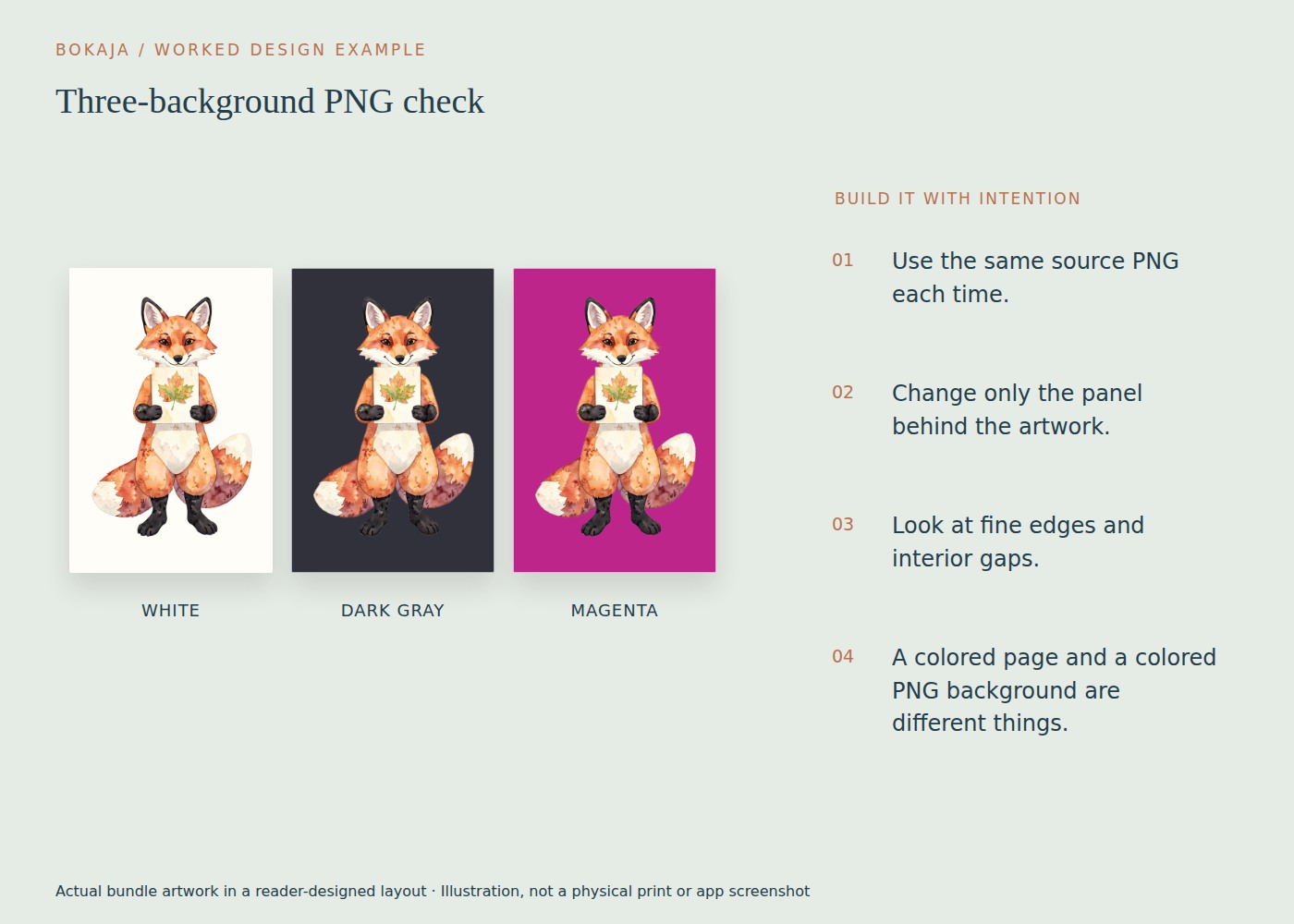
Many clipart creators show their designs on white backgrounds for display purposes (white backgrounds make images easier to see on websites and in previews). This doesn't mean the actual PNG file has a white background. Always test your files in your design program to confirm true transparency.
5 Essential PNG File Checks Before You Start
Let's walk through each quality check in detail so you can confidently verify your clipart before starting your project.
Check 1: Verify Transparent Background
How to Test in Canva:
- 1. Open Canva and create a new design (any size works).
- 2. Upload your PNG file.
- 3. Drag the image onto your canvas.
- 4. Click the background color swatch and choose "Checked" or "Checkerboard" (this is Canva's transparency indicator).
- 5. What you're looking for:
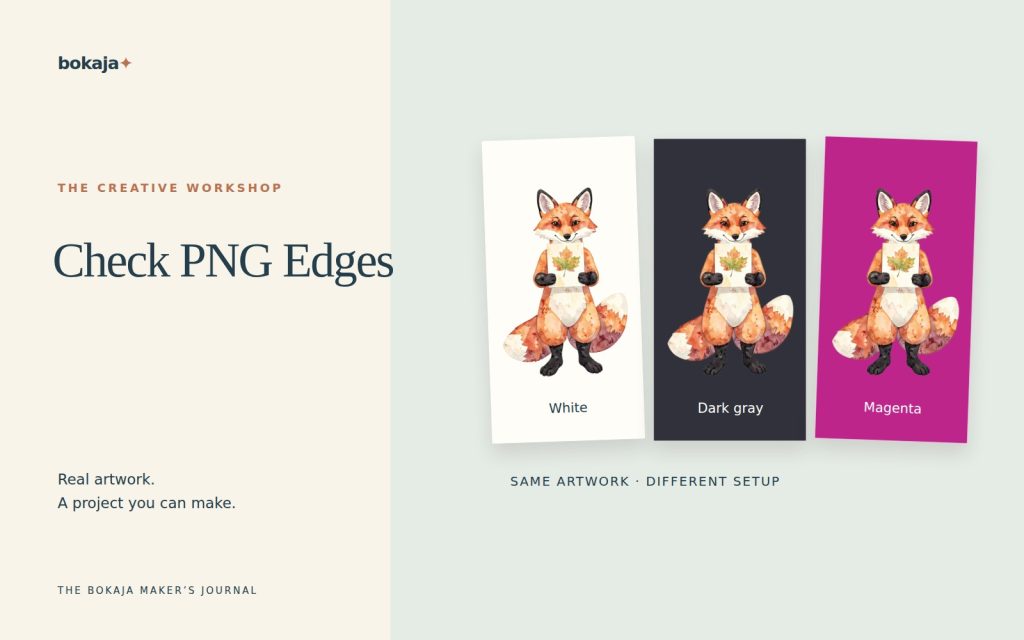
– Transparent PNG: The checkerboard pattern shows through empty areas around your design
– White background PNG: The checkerboard is covered by white; you only see solid white around the design
- 6. If unsure, change your canvas background to a color (like bright yellow). A truly transparent PNG will let the yellow show through empty areas.
How to Test on Desktop:
- 1. Windows: Right-click your PNG file → Open with → Photos app. Look for the checkerboard pattern behind the design. Or drag the file into your web browser (Chrome, Edge, Firefox) and see if the browser's default background shows through.
- 2. Mac: Right-click your PNG file → Open with → Preview. Look for the checkerboard pattern behind the design.
What a True Transparent PNG Looks Like:
- Empty areas show the background behind the image (checkerboard in design software, browser default in web browsers)
- No white rectangles, boxes, or borders around your design
- The design's edges are clean and well-defined
Warning Signs of White Backgrounds Masquerading as Transparent:
- The design appears perfectly rectangular with sharp edges (natural designs usually have organic edges)
- You see faint white halo or ghosting around the design
- When you change the background color, a white outline remains around your design
Check 2: Confirm Resolution and File Size
Recommended Resolutions by Use Case:
| Project Type | Recommended DPI | Why This Matters |
|---|---|---|
| Printables (stickers, invitations, cards) | 300 DPI | Prints crisp at actual size; prevents pixelation |
| Web/Social Media (Instagram, Pinterest, blog headers) | 72-150 DPI | Optimizes file size while maintaining screen quality |
| Cricut Print-Then-Cut | 300 DPI | Ensures print quality; Cricut will scale as needed |
| Sublimation | 300 DPI | Professional print quality; prevents blurry transfers |
How to Check File Size and Dimensions:
- 1. Windows: Right-click the file → Properties → Details tab. Look for "Dimensions" and "File size."
- 2. Mac: Right-click the file → Get Info. Look for "Dimensions" and "Size."
- 3. Canva: Upload the file and click it. Canva will display the dimensions in the top-left corner.
When Larger Isn't Always Better:
A 5000×5000 pixel file at 600 DPI might seem impressive, but:
- File size becomes unwieldy (slows down uploads, clogs cloud storage)
- Most projects don't need that resolution
- Canva, Cricut Design Space, and other tools may struggle with oversized files
Aim for the resolution that matches your intended use. 300 DPI at your target print size is usually sufficient for most clipart projects.
Check 3: Validate File Format and Type
PNG vs. JPG vs. WEBP Differences:
| Format | Transparency Support | Use Case |
|---|---|---|
| PNG | Full transparency support (alpha channel) | Clipart, stickers, designs needing layering |
| JPG | No transparency support | Photographs, solid-background images |
| WEBP | Supports transparency (but not all tools read it) | Web images where file compression matters |
How to Verify You Received Actual PNG Files:
- 1. Look at the file extension: It should end in `.png` (not `.jpg`, `.jpeg`, or `.webp`).
- 2. Check file properties (as shown in Check 2) and confirm "File type" or "Format" says PNG.
- 3. If you're unsure, try opening the file in Canva or your design tool. If transparency features work, it's a true PNG.
Renaming Files Doesn't Change Format:
If a file is `image.jpg` and you rename it to `image.png`, the file is still a JPG inside. The extension change is cosmetic. Always verify the actual file type, not just the extension.
Check 4: Preview Image vs Usable File
Understanding Preview Images in Download Folders:
Many clipart packs include:
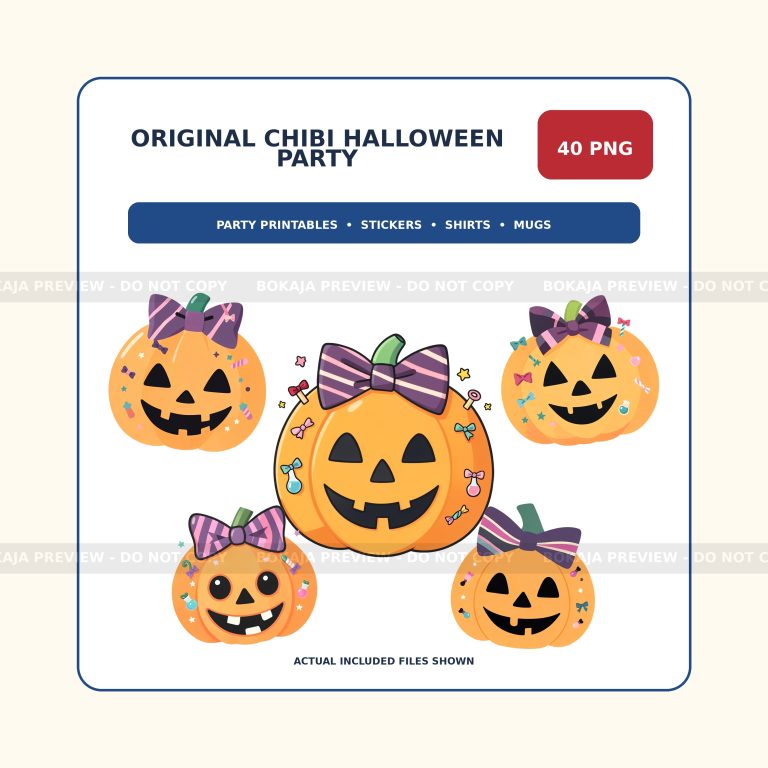
- Preview images: Small, low-resolution versions shown in product listings or download folders for quick reference
- Usable files: Full-resolution, print-ready PNGs for actual projects
Previews are usually named like `preview.jpg`, `thumbnail.png`, or `set-preview.png`. Usable files typically follow a naming pattern like `fairy-red-01.png`, `bunny-flower-02.png`, or simply numbered files.
How to Identify Usable Full-Resolution PNGs:
- 1. Check file sizes: Preview images are typically under 100 KB. Usable PNGs are often 200 KB to 2 MB or larger.
- 2. Look at file dimensions: Previews are often 500×500 pixels or smaller. Usable PNGs are usually 1000×1000 pixels or larger.
- 3. Check the file naming pattern: Organized packs use consistent naming for usable files.
- 4. If in doubt, open the file in your design tool. If it's crisp at large sizes, it's the usable version.
Organizing Your Downloaded Clipart:
Create a consistent folder structure for your downloads: “` /Bokaja Clipart/ /Fairy Set/ /preview/ (reference images) /usable/ (full-resolution PNGs) /Bunny Collection/ /preview/ /usable/ “`
This prevents accidental use of low-resolution previews in your projects.
Check 5: License and Usage Confirmation
Where to Find License Information:
- 1. Download confirmation email: Often includes license terms.
- 2. Seller's website or shop: Look for "License," "Terms of Use," or "Commercial Use" sections.
- 3. Inside the download folder: Many sellers include a `LICENSE.txt` or `README.md` file.
- 4. Product page: The original listing typically states usage permissions.
Personal vs. Commercial Use Differences:
| Usage Type | What It Means |
|---|---|
| Personal Use | Projects for yourself, family, or friends. No sales, no products sold, no business use. |
| Commercial Use | Projects you sell (physical or digital products), business materials, client work, social media content for business accounts. |
| Extended Commercial | May include mass production, unlimited sales, or broader usage rights. Always verify terms. |
Attribution Requirements (If Any):
Some licenses require credit to the creator. Common attribution formats include:
- "Graphics by [Creator Name]"
- "Clipart from [Shop Name]"
- Linking back to the creator's shop or website
If a license requires attribution, follow the specified format exactly. Some commercial licenses waive attribution entirely—check your terms.
For detailed information about Bokaja's digital product licenses, visit the Bokaja Digital Product License page.
Common Transparency Issues and Quick Fixes
White Ghosting Around Edges
The Problem: Your transparent PNG has a faint white outline or halo around the design.
Quick Fixes:
- If you have the source file, open it in an image editor (Canva, Photoshop, GIMP) and use the "Magic Wand" or "Select Subject" tool to refine the edges.
- In Canva, adjust the transparency slider slightly to reduce the visibility of the halo.
- For minor ghosting, change your design background color to minimize the contrast.
Checkerboard Patterns in Final Output
The Problem: You see checkerboard patterns in your printed project or exported file (not just in design software).
Quick Fixes:
- Check that your export settings don't accidentally include a transparency overlay.
- If printing, ensure you're exporting to JPG or PDF (not PNG) if you want a solid background.
- In Cricut Design Space, flatten your design before printing to bake in transparency.
Partial Transparency Not Rendering
The Problem: Semi-transparent areas (like fairy wings or soft shadows) look solid or distorted.
Quick Fixes:
- Verify your design tool supports PNG alpha transparency (most do, but some web-based tools have limitations).
- Check your export settings—"Save for Web" options sometimes compress transparency.
- If uploading to a platform (Etsy, Instagram, etc.), the platform may compress or alter transparency. Test your design in your final destination before finalizing.
Simple Troubleshooting Steps
- 1. Test in multiple tools: If Canva shows transparency but Cricut doesn't, the file is likely fine—the issue is tool-specific.
- 2. Re-download the file: Corrupted downloads sometimes cause transparency issues.
- 3. Check file history: Did you edit, resize, or re-save the file? Some operations strip transparency.
- 4. Contact support: If the file looks corrupted regardless of the tool, reach out to the seller for a replacement.
For download issues or files that don't match the product description, see the Bokaja Digital Downloads and Refunds support page.
Project-Specific Quality Standards
For Cricut Print-Then-Cut
Resolution Requirements:
- 300 DPI recommended for best print quality
- Cricut will scale images automatically, but higher resolution means better scaling
- Avoid files under 150 DPI for print-then-cut
Border Spacing Recommendations:
- Cricut requires at least 0.25 inches (6 mm) border around designs for the cut sensor to read registration marks
- Arrange your PNGs with adequate spacing in Cricut Design Space
- If your design touches the edge of the print area, move it inward
Color Mode Considerations:
- Use RGB color mode (sRGB or Adobe RGB)
- Avoid CMYK unless specifically needed for professional printing—Cricut printers are RGB-based
Workflow Tip: After arranging your PNGs in Design Space, click "Make It" and preview the print-then-cut layout. If registration marks are cut off or designs are too close, adjust spacing before printing.
For Canva Design Work
Upload Size Limits:
- Canva Free: Up to 5 GB per file
- Canva Pro: Up to 15 GB per file
- Most PNG clipart falls well within these limits
Layer Considerations:
- Transparent PNGs layer seamlessly over backgrounds and other elements
- Group related PNGs (like matching fairy sets) for easy repositioning
- Lock background layers to prevent accidental moves while adjusting foreground PNGs
Export Format Notes:
- For projects requiring transparency (digital stickers, overlays), export as PNG
- For print-ready files with solid backgrounds, export as PDF or JPG
- Canva Pro allows export with transparency; Free users may need a workaround
For a beginner-friendly Canva workflow, see The Ultimate Guide to Canva for Beginners.
For Printable Projects
Print Margin Guidelines:
- Most printers have a 0.125 to 0.25 inch (3 to 6 mm) unprintable margin
- Position your PNGs at least 0.5 inches (13 mm) from document edges
- Check your printer's specifications if printing edge-to-edge
Color Profile Recommendations:
- Use sRGB color profile for most home printers
- If using a professional print service, ask about their color profile requirements
- Avoid switching between RGB and CMYK mid-project—it shifts colors
Paper Size Considerations:
- Design at your intended print size (not screen size) to avoid scaling issues
- For A4 prints, set your canvas to 210×297 mm at 300 DPI
- For US Letter, set to 8.5×11 inches at 300 DPI
For more details on resolution and print standards, read Best PNG Size and DPI for Print-on-Demand.
Tools for Checking PNG Quality
Built-in Tools (Already on Your Computer)
Windows:
- Photos App: Quick transparency check with default checkerboard
- File Explorer: Right-click → Properties → Details for file info
- Paint: Basic viewing, but limited for transparency checks
Mac:
- Preview: Shows transparency with checkerboard pattern
- Finder: Right-click → Get Info for file details
- Quick Look: Press Spacebar to preview files without opening
Canva:
- Upload and test transparency with the "Checked" background
- Check dimensions by clicking uploaded images
- Test layering and export behavior
Free Online Tools
Image Verification Sites:
- Online transparency checkers (search "check PNG transparency online")
- Image metadata viewers that display DPI, dimensions, and format
- Color palette testers that confirm true transparency vs. white backgrounds
Browser-Based Checks:
- Drag and drop PNGs into Chrome, Firefox, or Safari
- Look for the browser's default background showing through empty areas
- Use browser developer tools (Inspect) to view image properties
What NOT to Use:
- Social Media Uploads: Instagram, Facebook, and Pinterest compress images and strip transparency. Don't use these platforms to test your PNGs.
- Cloud Storage Previews: download area, Dropbox, and OneDrive show compressed previews that may not reflect true file quality.
- Email Attachments: Email clients often display lower-quality previews.
Pro Tip: Always test your final PNGs in the tool where you'll use them (Canva, Cricut Design Space, etc.). Built-in checks are useful, but your destination tool is the ultimate judge of compatibility.
FAQ: Common Questions About PNG Clipart Transparency and Quality
How can I tell if my PNG has a transparent background?
The easiest method is to test your PNG in your design tool. In Canva, upload the file and change your canvas background to the "Checked" pattern or a bright color like yellow. If the checkerboard or color shows through the empty areas around your design, the background is transparent. If you see a solid white box around the design, the background is not transparent. On desktop, you can also open the file in Windows Photos or Mac Preview—both display a checkerboard pattern behind transparent areas.
Why does my PNG look transparent in Canva but has a white box when printed?
This usually happens because of export settings. Canva may show transparency on your canvas, but if you export as a PDF or JPG, the transparency gets baked into a solid background. To preserve transparency, export as PNG. If you're printing directly from a browser or another program, that program may not support transparency. Always test your export format in your intended output tool (printer, Cricut, etc.) before finalizing your project.
What resolution should PNG clipart be for Cricut projects?
Aim for 300 DPI at your intended print size. Cricut's print-then-cut feature produces best results with higher-resolution files because they scale cleanly without pixelation. For smaller designs (under 2 inches), 200-300 DPI is usually sufficient. Avoid files under 150 DPI for Cricut print-then-cut—they may appear blurry or jagged when printed. Remember: Cricut scales images automatically, so starting with higher resolution gives you more flexibility.
I downloaded a clipart pack but only see preview images—where are the usable files?
Most clipart downloads include two types of files: preview images (small, low-resolution reference images) and usable files (full-resolution PNGs for projects). Preview images are often named "preview.jpg," "thumbnail.png," or similar, and are typically under 100 KB in size. Usable files follow a naming pattern like "fairy-01.png" or "bunny-flower-02.png" and are usually 200 KB to 2 MB or larger. Check your download folder for files with larger sizes and detailed names—if you only see small preview files, you may have an incomplete download or need to extract files from a ZIP archive.
Can I use PNG clipart with transparent backgrounds in Print-on-Demand designs?
Yes, transparent PNGs are ideal for Print-on-Demand (POD) designs. They layer cleanly over product mockups, allow for complex compositions without background conflicts, and give you creative flexibility. However, most POD platforms convert designs to JPG or PNG with flattened backgrounds before printing. Check your platform's requirements—some support transparency uploads, while others require you to add a background color before uploading. Always test your design in your POD platform's preview tool to ensure transparency renders as expected before listing products.
For more PNG clipart options, browse Bokaja's PNG Sets collection.
—
Quick Reference Checklist
Before Starting Your Project:
- [ ] Tested transparency in Canva or design tool
- [ ] Confirmed resolution matches project type (300 DPI for print, 72-150 DPI for web)
- [ ] Verified file is actual PNG (not renamed JPG or WEBP)
- [ ] Identified usable full-resolution files (not previews)
- [ ] Reviewed license terms (personal vs commercial, attribution requirements)
After Quality Check:
- [ ] Organized files in project folder (preview and usable separated)
- [ ] Saved a backup of original files
- [ ] Tested design in destination tool (Cricut, Canva, POD platform)
- [ ] Verified export format matches needs (PNG for transparency, PDF/JPG for print)
Save this checklist for future downloads—it applies to any PNG clipart, not just Bokaja.
Ready to start designing? With your PNG clipart verified and your quality checks complete, you're all set to create. Whether you're making stickers for a birthday party, designing classroom printables, or setting up your next Cricut project, transparent PNG clipart gives you the flexibility to layer, combine, and customize without fighting white backgrounds.
Happy designing!