Bokaja guide
Canva vs Cricut Design Space: Which Should You Use for PNG Files?
Updated August 2026 · workflow guide
Use Canva to arrange printable layouts and use Cricut Design Space when the project needs cutting or print-then-cut. This guide shows when each tool wins, how to use them together, and how to avoid blurry or background-filled PNG files.
Quick answer: Canva or Cricut?
Choose Canva for invitations, worksheets, signs, labels and complete printable pages. Choose Cricut Design Space for stickers, toppers, decals and projects that must be cut. For many print-then-cut projects, the cleanest workflow is to arrange the page in Canva, export it at the correct pixel size, then finish the cut setup in Cricut.
Canva vs Cricut Design Space at a glance
Best for printable pages, invitations, classroom sheets, social graphics, labels and multi-element layouts.
Output: PNG, PDF or a finished page ready for printing.
Best for print-then-cut stickers, toppers, decals, cut boundaries and physical craft production.
Output: a prepared Make workflow with tested cut lines.
Best when Canva gives you faster layout control but Cricut must perform the final cutting step.
Output: one correctly sized flattened design imported into Design Space.
A reliable Canva-to-Cricut workflow
PNG file checklist before uploading
- Open the PNG over a colored background to confirm transparency.
- Check pixel dimensions against the final print size; changing DPI metadata alone does not add detail.
- Keep important artwork away from the cut edge.
- Flatten only the finished layout, not the original source files.
- Print one small proof to check scale, color, text size and cut alignment.
- Review the license before selling finished products.
Need exact dimensions? Use the PNG size and effective-DPI guide.
Practice files and real bundle examples
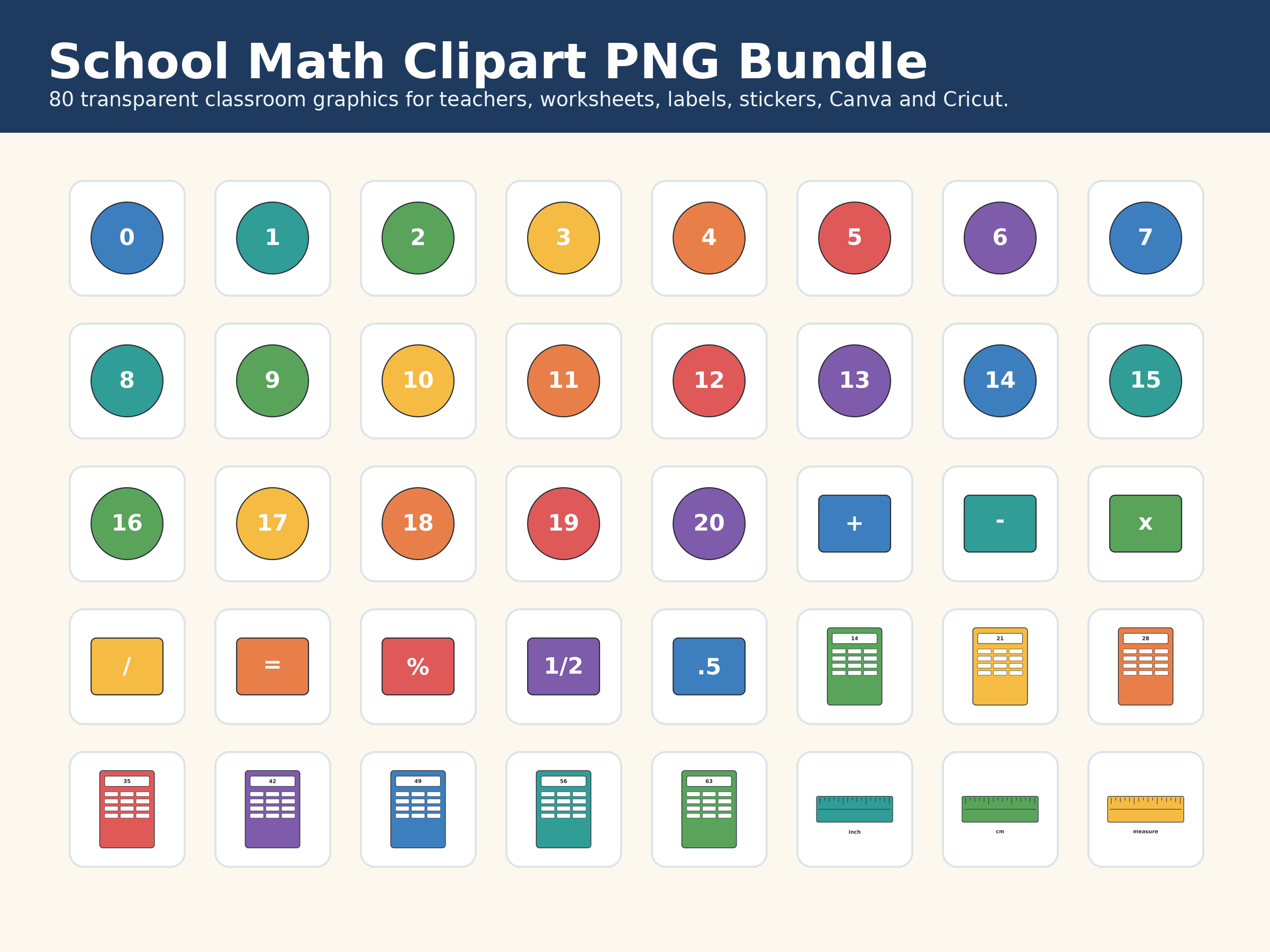 School Math PNG Bundle
Classroom graphics suited to worksheet layouts in Canva and sticker or label tests in Cricut.
View the school bundle Free transparent PNG practice pack
Use a real no-checkout sample to test transparency, sizing and a Canva-to-Cricut workflow.
Open the free sample pack Magic Cauldron Herb Garden
A current bundle with exact listing previews for stickers, labels, seasonal layouts and craft planning.
View the bundleCommon Canva and Cricut PNG problems
Why does my PNG show a white box?
The file may not contain a transparent alpha channel, or the background was flattened during export. Check it over a colored canvas before importing it again.
Why is the design blurry after upload?
The raster image is probably being enlarged beyond its useful pixel dimensions. Return to the original file and rebuild the layout at the final output size.
Why does Cricut add an unwanted cut shape?
Design Space follows the visible outer boundary. Remove stray pixels, close unwanted gaps and test the cut preview before printing.
Should I export each element or the whole page?
Export individual transparent elements when you still need to arrange them in Cricut. Export the whole finished composition when Canva has already created the exact print-then-cut layout.
Related guides and support
Canva vs Cricut FAQ
Can the same PNG work in Canva and Cricut?
Yes. A clean transparent PNG can be used in Canva for layouts and in Cricut Design Space for print-then-cut planning.
Is Canva or Cricut better for stickers?
Canva is usually faster for arranging a sticker sheet; Cricut is required when a Cricut machine will print and cut the finished sheet. Many makers use both.
Do I need SVG files instead of PNG files?
Use SVG for scalable cut-line artwork. Use PNG for detailed raster art, print-then-cut, sublimation, stickers, mockups and printable layouts.
Does changing a PNG to 300 DPI improve quality?
No. Quality comes from enough source pixels for the final print size. Changing only the DPI metadata does not create detail.
Can I sell projects made from Bokaja PNG files?
Finished physical products may be allowed under the applicable license, but reselling or redistributing the original digital files is not. Review the current license before publishing or selling.